When a PS4 reinstallation is appropriate
The PS4 firmware reinstallation file is normally used after a replacement internal drive or when PlayStation recovery instructions say the installed system software cannot be repaired. If the console starts normally and only needs a routine update, use the normal PS4 system software page instead.
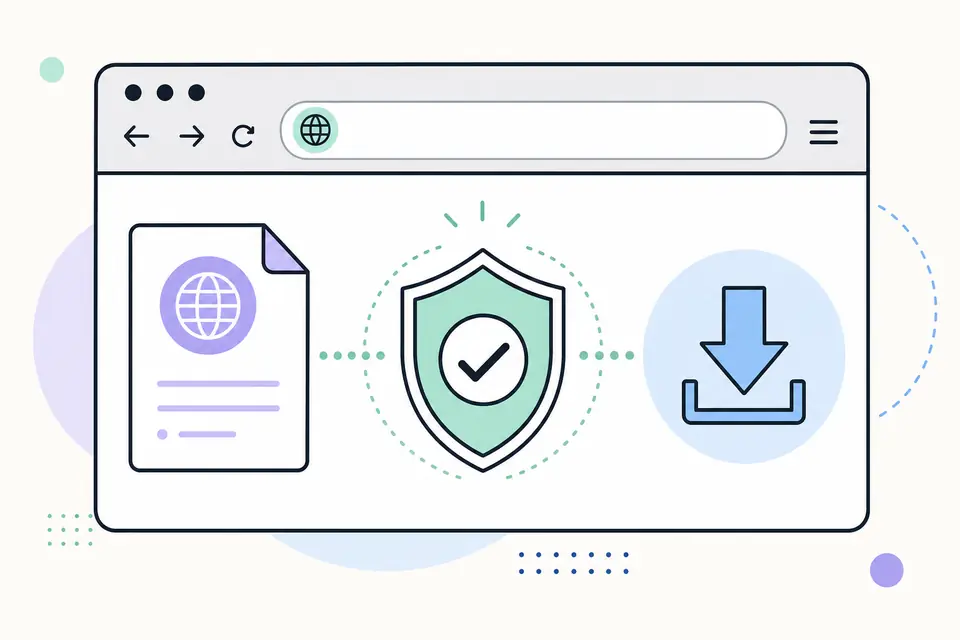
Both packages can use the filename PS4UPDATE.PUP, so the folder name alone does not prove that the correct file was downloaded. Confirm that you selected the reinstallation section on PlayStation Support and read the displayed file description before continuing.
Prepare for a destructive PS4 reinstall
- Back up saved data to supported cloud storage or USB where possible.
- Record account information and two-step verification recovery details.
- Synchronize trophies and confirm important captures exist elsewhere.
- Use a reliable USB drive formatted as FAT32 or exFAT.
- Keep the console connected to stable power and do not remove the drive during installation.
Install the PS4 reinstallation file in Safe Mode
- 1
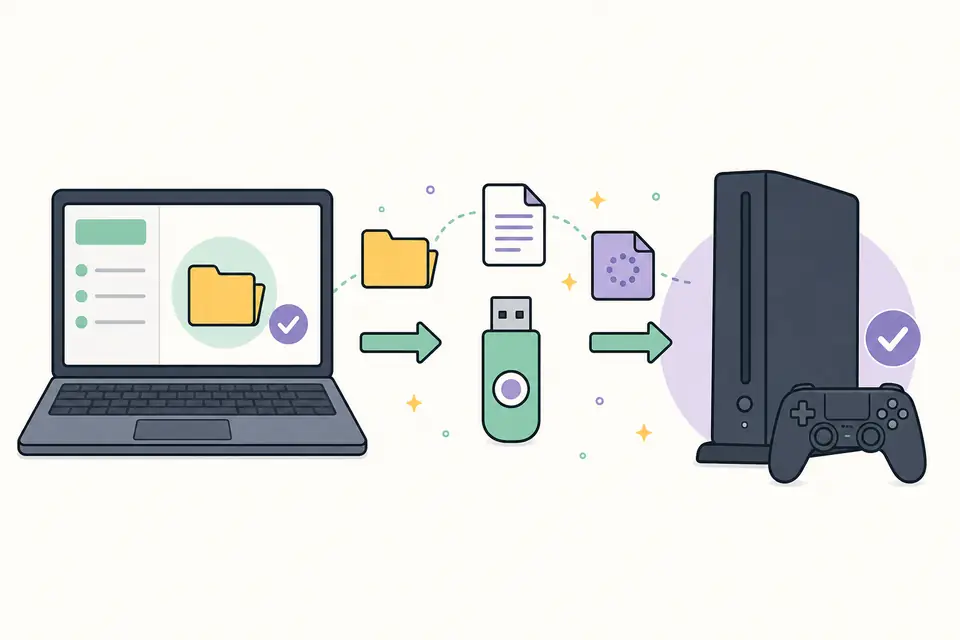
Create PS4/UPDATE on the USB device and place the official reinstallation file inside as PS4UPDATE.PUP.
- 2
Turn the PS4 completely off. Press and hold the power button until you hear the second beep to enter Safe Mode.
- 3
Connect a DualShock 4 with a USB cable and press the PS button.
- 4
Choose Initialize PS4 (Reinstall System Software), then select the USB storage device.
- 5
Read the erase warning, confirm only when the backup is complete and allow the installation to finish.
If Safe Mode rejects the reinstall package
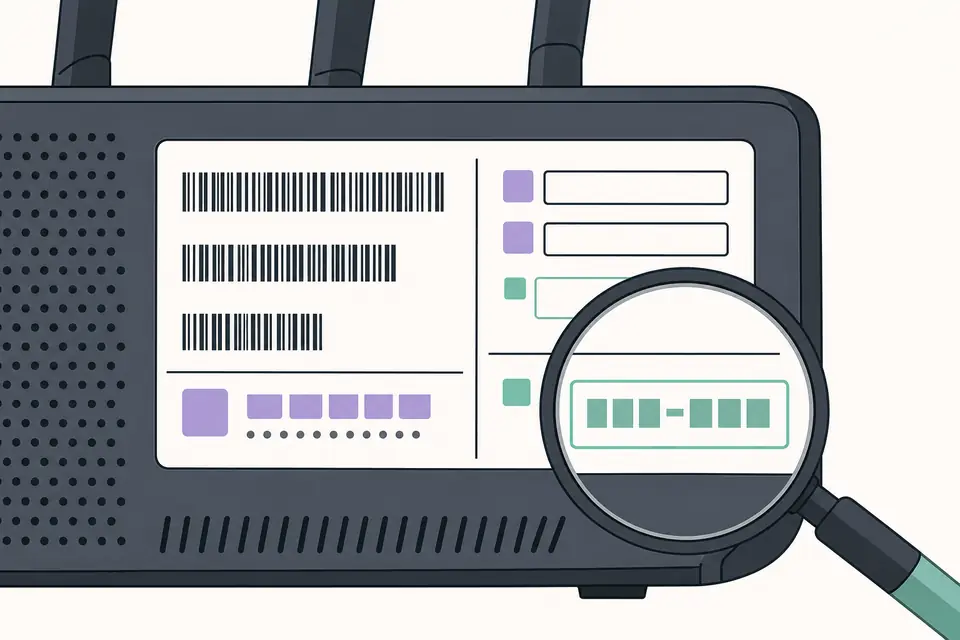
Recheck that the file came from the reinstallation section, not the normal update section. Confirm the exact uppercase path, remove duplicate filename extensions and download the file again if its transfer was interrupted. Try another USB port or storage device when the PS4 cannot read the drive.
A failing internal drive or hardware fault can also prevent installation. If repeated downloads from the official source fail after the folder and USB checks pass, use PlayStation repair guidance rather than repeatedly initializing the console.
Verify the full PS4 reinstallation file download
The official PS4 reinstallation file download is located in the reinstall section of PlayStation Support, below or separate from the routine console update. Read the section heading and destructive-data warning before selecting the button. Both packages may use PS4UPDATE.PUP, so the filename cannot prove that you have the full image. A PS4 reinstallation file is normally larger because it must rebuild system software on an empty or replaced drive.
Let the PS4 reinstallation file download finish completely and keep its original name. Do not extract the PUP, place it inside another archive or launch a third-party downloader. When a browser or connection fails midway, discard the partial file. Returning to the official PS4 reinstallation file download source reduces the risk of installing a truncated or substituted package during an already sensitive recovery.
Confirm that full reinstallation is necessary
A replaced internal drive, an initialization request from Safe Mode or explicit PlayStation recovery instructions can justify a full reinstall. A routine version update does not. Before using the PS4 reinstallation file, try only the non-destructive steps appropriate to the actual error, then back up accessible saves, captures and account details. Reinstallation removes local users and content; it is not a repair experiment that can be undone afterward.
Check the replacement drive connection and capacity before blaming the package. Prepare a reliable FAT32 or exFAT USB device with PS4/UPDATE/PS4UPDATE.PUP, then enter Safe Mode with a data-capable controller cable. Select Initialize PS4 (Reinstall System Software) only after confirming the warning. If Safe Mode asks for a reinstallation file, a normal PS4 update file will not satisfy that request even though its filename matches.
Handle reinstallation errors without risking another copy
If the system cannot find the PS4 reinstallation file, inspect folder capitalization, USB format and hidden filename extensions. If it finds the file but reports corruption, download a fresh copy from PlayStation and use different known-good storage. If it reports that the file cannot be used, confirm that you downloaded the full reinstallation package for PS4 rather than the smaller normal update.
Keep the error code, source URL, download date and recovery option in a short service record. Do not attempt a downgrade with an older PS4 reinstallation file; standard recovery expects a supported current release. Report a stale destination when this page no longer opens the official reinstall section. A verified PS4 reinstallation file source is safer and easier to audit than an anonymous mirror with no current release context.
After initialization, connect to the network, install any newly offered system update and restore only data from a trusted backup. Sign in with the console owner's account and verify licenses before downloading a large game library. If a replacement drive is not detected consistently, investigate its seating and health rather than repeating system installation indefinitely.
Store the recovery USB separately from ordinary update media until setup is complete. Label it as destructive and include the download date, because the shared filename is otherwise ambiguous. Before using it again in the future, revisit the official support page and prepare the current package. Recovery media should be treated as versioned maintenance material, not as a permanent universal installer. Confirm the new system version, reconnect controllers and test storage before restoring a large backup. Keep the console connected to stable power throughout this final verification process.
PS4 Reinstallation File Download and Safe Mode Guide FAQ
Does the PS4 reinstallation file erase everything?
Yes. A full system software reinstallation initializes the PS4 and deletes local users and data. Back up before continuing.
Is the reinstall file the same as the update file?
No. They serve different purposes even though both may use the filename PS4UPDATE.PUP. Download from the correct section of PlayStation Support.
Do I need the reinstall file after replacing the PS4 hard drive?
A blank replacement drive normally requires the full reinstallation package so the console can rebuild its system software.
Can I cancel after starting the reinstall?
Do not interrupt power or remove storage once installation begins. Interrupting the process can leave the system unable to start.
Why does my PS4 say the reinstallation update file is corrupted?
Check that you selected the full reinstallation package, used the exact PS4/UPDATE/PS4UPDATE.PUP path, and completed the download. A duplicate extension, incomplete transfer or failing USB drive can make Safe Mode report a corrupted file.