Update Nintendo Switch to version 22.5.0
Nintendo states that consoles normally download the newest system update automatically while online. The manual System Update command is useful when checking whether a console is current.
- 1
Connect the Nintendo Switch console to a stable Internet connection.
- 2
Select System Settings from the HOME Menu.
- 3
Scroll down and select System.
- 4
Select System Update. If a newer update is available, the console will begin downloading it.
- 5
Keep the console powered and allow it to restart when the official update process requests it.
What changed in Switch system version 22.5.0
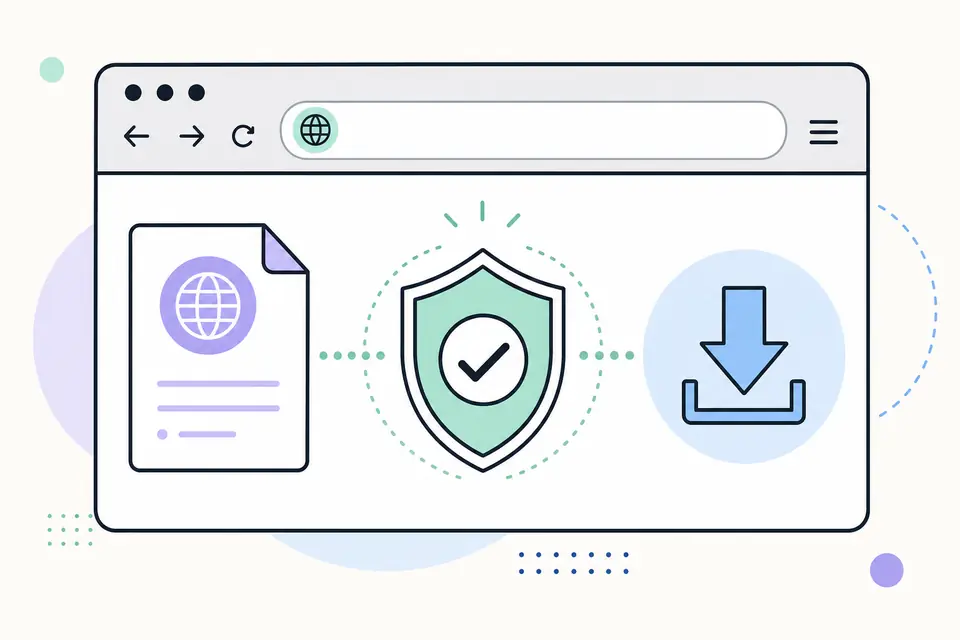
Nintendo's June 15, 2026 notes describe a redesigned Nintendo eShop layout, theme-aware eShop color when Basic Dark is selected, User-Verification PIN support for selected eShop actions, ten-second rewind and advance controls for full-screen video, and general stability improvements.
Use Nintendo's update-history page as the authoritative source because notes and current-version status can change after this page is published.
If the Nintendo Switch update will not start
- Restart the console and run System Update again.
- Check that the Internet connection works in System Settings.
- Make sure sufficient storage is available and the console is not in Airplane Mode.
- Use Nintendo Support for persistent update errors or repair instructions.
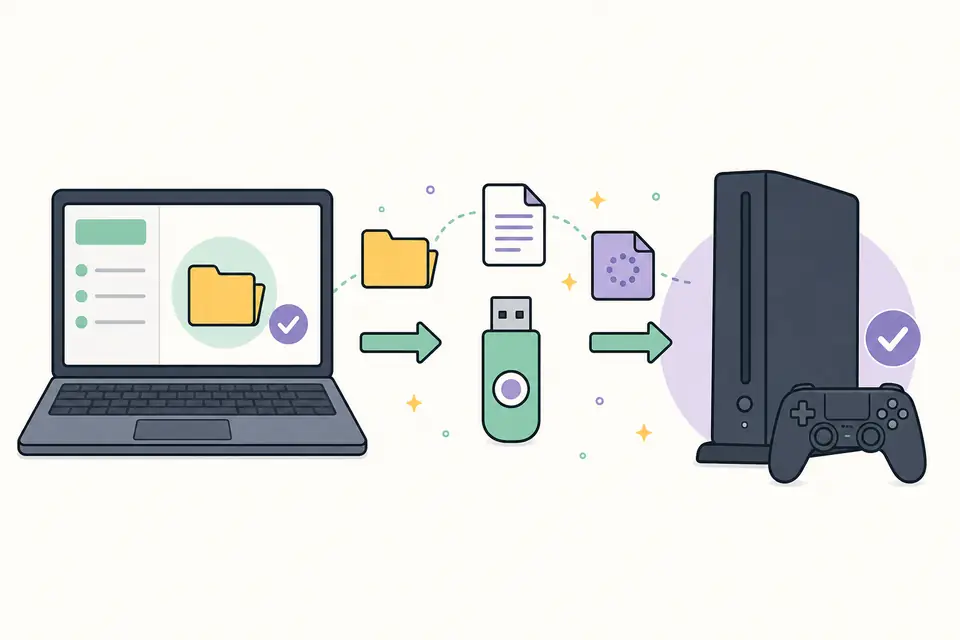
- Do not use an unofficial package presented as an offline official update.
Check the installed Switch system version
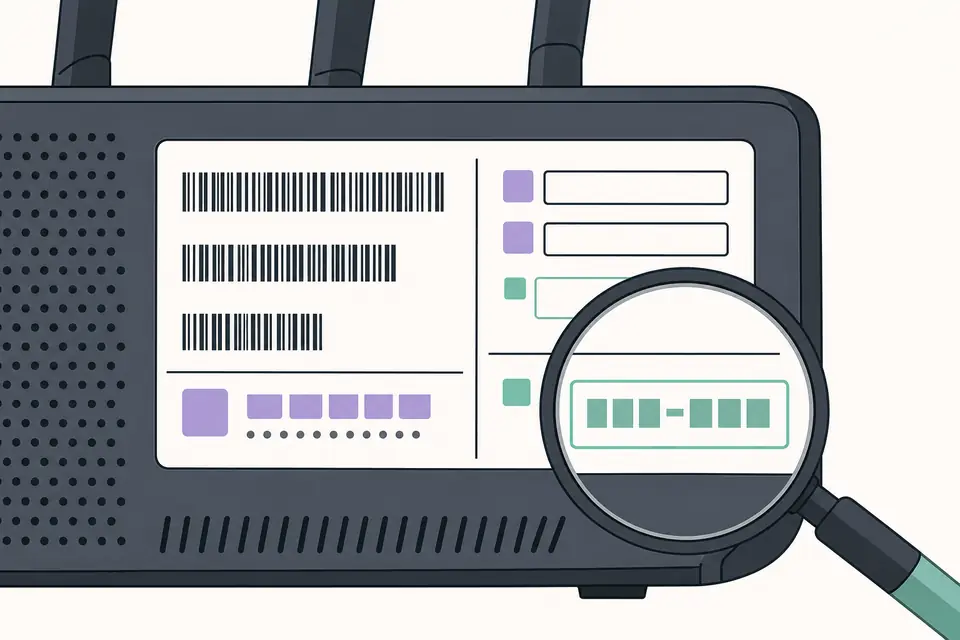
Open System Settings, select System and look for the Current System Version entry. Compare that number with Nintendo's current update-history page rather than relying on a screenshot or an old forum post. The console may already be current even if a game or controller separately asks for an update.
System software, game software, controller firmware and dock updates are separate processes. A game update is managed from the HOME Menu software options, and supported controller updates appear under Controllers and Sensors. Do not treat a prompt for one component as proof that the entire console system needs an unofficial package.
Prepare the console before an online system update
Charge the console or place it in a powered dock, save current game progress and use a stable network. Do not force a shutdown while the console is installing system software. If the battery is very low or the network drops repeatedly, resolve that condition before starting another attempt.
Nintendo Account purchases are associated with the account, but local save data and screenshots still deserve normal backup care. Nintendo Switch Online cloud backup availability depends on the title and membership. A routine update is not intended to erase user data, yet a backup remains sensible before troubleshooting a console that is already unstable.
Why unofficial offline packages are a poor shortcut
An archive labeled with a current version number does not prove that it is complete, authentic or appropriate for a retail console. It may contain modified files, material extracted from another device or malware added by a distributor. It also lacks the automatic compatibility checks built into Nintendo's supported online workflow.
For a standard retail Switch, use System Update and Nintendo Support. If the console cannot update online after restart, connection and storage checks, record the error code and use Nintendo's repair guidance. FirmwareDownload.wiki does not troubleshoot modified consoles or provide instructions for bypassing Nintendo security.
Switch firmware and emulator searches
People often reach firmware searches while configuring a Nintendo Switch emulator. Console firmware and encryption keys are copyrighted or access-controlled materials and are not ordinary open-source emulator downloads. This site does not host them or link to unofficial archives.
For emulation, use software documentation and obtain required system material only through a lawful process from hardware you own. The Ryujinx guide explains the distinction without supplying files or bypass instructions.
Verify the current Nintendo Switch firmware update
Nintendo publishes the current Nintendo Switch firmware update through the console and maintains an official change-history page. Check that page for the live version because a newer release may appear after our review date. The normal Nintendo Switch firmware update does not require users to locate a package archive, copy files to a memory card or install a desktop downloader. The console retrieves supported system software through its built-in update function.
Before starting, connect the AC adapter or ensure the battery is well charged, use a stable internet connection and save open software progress. From System Settings, choose System and then System Update. Read any on-screen notice and let the console restart when requested. Do not remove the microSD card, force a shutdown or interrupt networking merely because the progress display pauses briefly.
Troubleshoot an official Switch update
If the update does not begin, restart the console normally and test the network connection. Confirm that date, time and DNS settings are reasonable, then try the built-in updater again. Record any Nintendo error code exactly; the official support database uses that code to distinguish server, network and storage problems. Avoid resetting the console until the relevant Nintendo instructions call for it.
A failed Nintendo Switch firmware update is not a reason to download an unknown firmware archive. Unofficial packages may be outdated, modified or legally restricted, and they bypass the model's supported delivery checks. This page links to Nintendo's version history and update guidance rather than redistributing system files. For a stock Switch, Switch Lite or OLED model, Nintendo Support remains the authoritative recovery source.
Keep version history and emulator files separate
The version table documents public Nintendo release notes, not a catalog of downloadable firmware packages. Record the version shown in System Settings after a successful Nintendo Switch firmware update and compare it with Nintendo's current history. Minor releases may focus on stability or policy changes even when no visible feature is added.
Emulator searches often mix firmware, keys and game content, but those are separate items with separate legal and technical requirements. FirmwareDownload.wiki does not provide prod.keys, title.keys or extracted Nintendo firmware. Use hardware you own and current project documentation where lawful. Report a stale version or destination if our page differs from Nintendo's live record so the Nintendo Switch firmware update listing can be corrected.
Nintendo Switch Firmware Update and Version History FAQ
What is the latest Nintendo Switch firmware version?
Nintendo lists version 22.5.0, released June 15, 2026, on its official update-history page checked July 20, 2026.
Can I download Nintendo Switch firmware as a ZIP here?
No. Nintendo provides normal console updates through the Internet, and FirmwareDownload.wiki does not distribute Switch firmware archives.
How do I manually check for a Switch update?
Open System Settings from HOME, select System, then select System Update.
Does Switch 22.5.0 support Lite and OLED models?
Nintendo's update page applies to Nintendo Switch, Nintendo Switch Lite and Nintendo Switch OLED Model systems.